Learn now the basic functions of Excel and start your development with the Office suite!
See what Excel's basic functions are and don't waste time to start your development and achieve incredible results with this powerful tool from the digital world!


Excel is one of the most popular Microsoft software in the world and one of the most used by companies. This popularity is related to the innumerable functionalities that it offers in the most diverse areas of performance. To get an idea of its versatility, the program is used by both those who want to better control their personal finances and those who need to analyze and manipulate a large amount of data.
To let you stay even more on top of the main and simplest Excel tools, we have separated in this article, topics full of information. Check it out!
- How does Excel work?
- Excel Basic Fórmulas
- Functions of excel
- Main Excel Shortcut Keys
In this article, we'll show you how Excel is structured, as well as some basic features such as formulas, functions, and key keyboard shortcuts. Our aim is to help lay people and beginners take the first step to learn how to use this technology in their daily lives. So let's go!
How does Excel work?
Excel is a spreadsheet editor, and a spreadsheet is nothing more than a table. Like the whole table, Excel is composed of rows and columns, with rows numbered from 1 to infinity, and columns, named A through Z and then AA to ZZ. Each square of the table is called a cell, so that square that is in the encounter of column C with line 5 is called the cell "C5".
Voitto Tip: Selecting a cell can be done with a simple click or by pressing the SHIFT key along with any of the keyboard arrows. However, if you want to quickly select a range, you can use the shortcut CTRL + SHIFT + Arrow.
Excel Basic Formulas
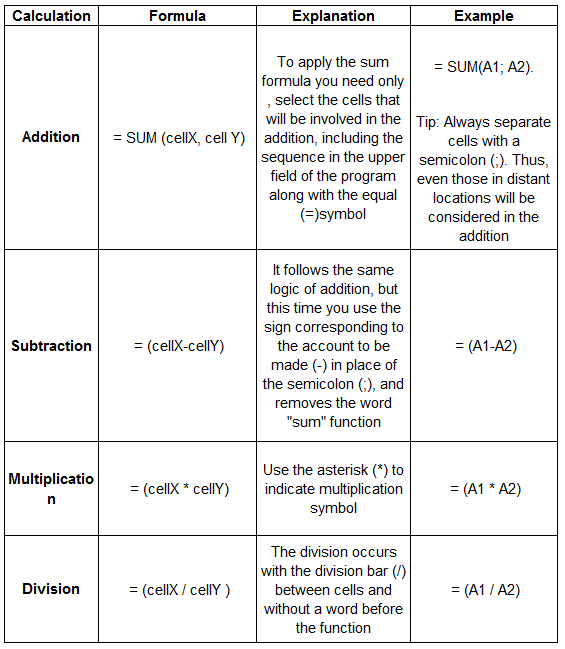
Excel performs various operations using formulas. Formulas are equations that perform mathematical calculations in the worksheet. The data to be used in the accounts can be provided by the user or referrals from other cells, and every formula must begin with the equal sign (=).
And since the first formulas we learned in school are those of addition, subtraction, multiplication and division, Excel could not be different:
Are you tired of missing out on incredible career opportunities because you don't know about the main Excel tools?
So you are in the right place! In the Excel for Beginners course, you will learn to work with data in an agile way.
In addition, the course is available for FREE, just click on the banner button below and embark on this journey of knowledge!

Functions of excel
Functions are automatic formulas, that is, they are predefined operations that work on the values of spreadsheets. They differ from the common formulas because the user provides the values (parameters), but not the operators.
Functions are composed of two elements: the function name and the values, which are displayed in parentheses. These values are called arguments, so we can define functions without arguments, with an argument, or with several arguments.
Example: = SUM (A5: A10)
Where: SUM is the name of the sum function.
A5: A10 are your arguments, that is, the cells that we want to add.
Excel performs calculations faster depending on how the parameters are entered. Example: The function = SUM (A5: A10) is equivalent to the formula = A5 + A6 + A7 + A8 + A9 + A10.
Voitto tip: The "colon" represents "up to" and the "semicolon" represents "one or the other".
Main Excel Shortcut Keys
Shortcut keys are meant to make life easier for those who use Excel. Check out which commands are most commonly used to perform basic functions in the software:
CTRL + 1: This is the shortcut for formatting cells. Use this shortcut and the cell formatting window will open.
CTRL + SHIFT + $: When working with monetary values, you can apply the currency format using this shortcut. It places the symbol $ in the number and two decimal places. Negative values are enclosed in parentheses.
CTRL + SHIFT + Asterisk (*): This command is extremely useful when you need to select the data that is around the currently active cell. If there are empty cells in the middle of the data, they will also be selected.
CTRL + Plus sign (+): Used to insert cells. When you select an entire column and use this shortcut, it creates another column. The same is true for the line.
CTRL + Subtraction (-): Used to exclude cells. When you select an entire column and use this shortcut, it deletes the entire column. The same is true for the line.
CTRL + D: Repeats the command entered in the previous cell, including formulas and formatting. For example, you want to set the value "85" in the range A1: A150. Simply enter this value in the first cell. Select the range A1: A150 and press the shortcut. The same in the first cell will repeat itself to the others.
CTRL + R: It works the same way as the above command, but to fill columns.
CTRL + ALT + V:Shortcut to Special Paste. When this window is open, just press the V key and the option Values is selected.
CTRL + PAGE DOWN: Use this command to switch to the next worksheet in your workbook.
CTRL + PAGE UP: Similar to the previous command. However, when you run you switch to the previous worksheet.
CTRL + Direction Arrows: Moves the cursor to the last filled cell. If there were any empty cells in the middle, the cursor will be moved to the last filled cell that is before the empty cell.
CTRL + SPACEBAR: Use this shortcut if you want to select the entire column where the cursor is.
SHIFT + SPACEBAR: Similar to the above command, however, it selects the entire line where the cursor is.
ALT + Equals (=): AutoSum.
ALT + semicolon (;): Selects only visible cells (useful for copying data from a table where filters or cells have been hidden). With this command, only the visible cells will be selected.
F2: If you make a mistake while inserting formulas into a cell, press F2 to move the keyboard cursor inside the cell using the right and left arrow keys. If you press one of the arrows without using F2, the cursor will be moved to another cell.
F4: Repeat the last command or action, if possible. When a reference to a cell or range of cells is selected in a formula, F4 cycles through all the various combinations of absolute and relative references.
F5: Displays the dialog box Go To.
F8: Use this key to turn the extended selection mode on or off. This can be used in the same way as SHIFT. However, it will only be disabled when pressed again, other than SHIFT, which needs to be held down so you can select multiple cells from the worksheet.
F9: Calculates all worksheets in all open workbooks.
F11: Automatically recognizes the entire filled range of the active cell and generates a graph on another tab. Very useful for making graphics very fast.
To test all these shortcuts sign up for our Free Excel course and learn how to navigate in spreadsheets, record information and manage data with Excel. Take the opportunity and start your experience with the tool, which will allow you to work with data and information to solve problems, analyze data and make complex decisions in your professional and personal life.
If you made it this far, I have a question for you...
Today one of the most demanded skills in selection processes is the use of Excel. And to give you a good idea of the first steps and first functions, we created the Excel eBook for Beginners.
By downloading our eBook, you will have a step-by-step and practical guide to be able to create your first spreadsheets, and use your most basic and essential functions.
Download it now!
![[EBOOK] Excel for Beginners](https://files.voitto.com.br/blog/prismic/4452920d-9accc706-d6a9-4044-b376-d932d55e820e_Bot_o_Banner_Cursos_-_TLSS_15_.png "[EBOOK] Excel for Beginners")